Friends, we have prepared another big improvement! With the new MLO 3 feature pack you can see a number of different tasks for views o...

IMG_2098-Counters.PNG


Friends, we have prepared another big improvement! With the new MLO 3 feature pack you can see a number of different tasks for views on your iOS devices!


Let us remind, we announce new features of MLO for iOS. The new version will be available soon. Now it is being tested by beta testers.
Before that, we reviewed the new feature of using flags.


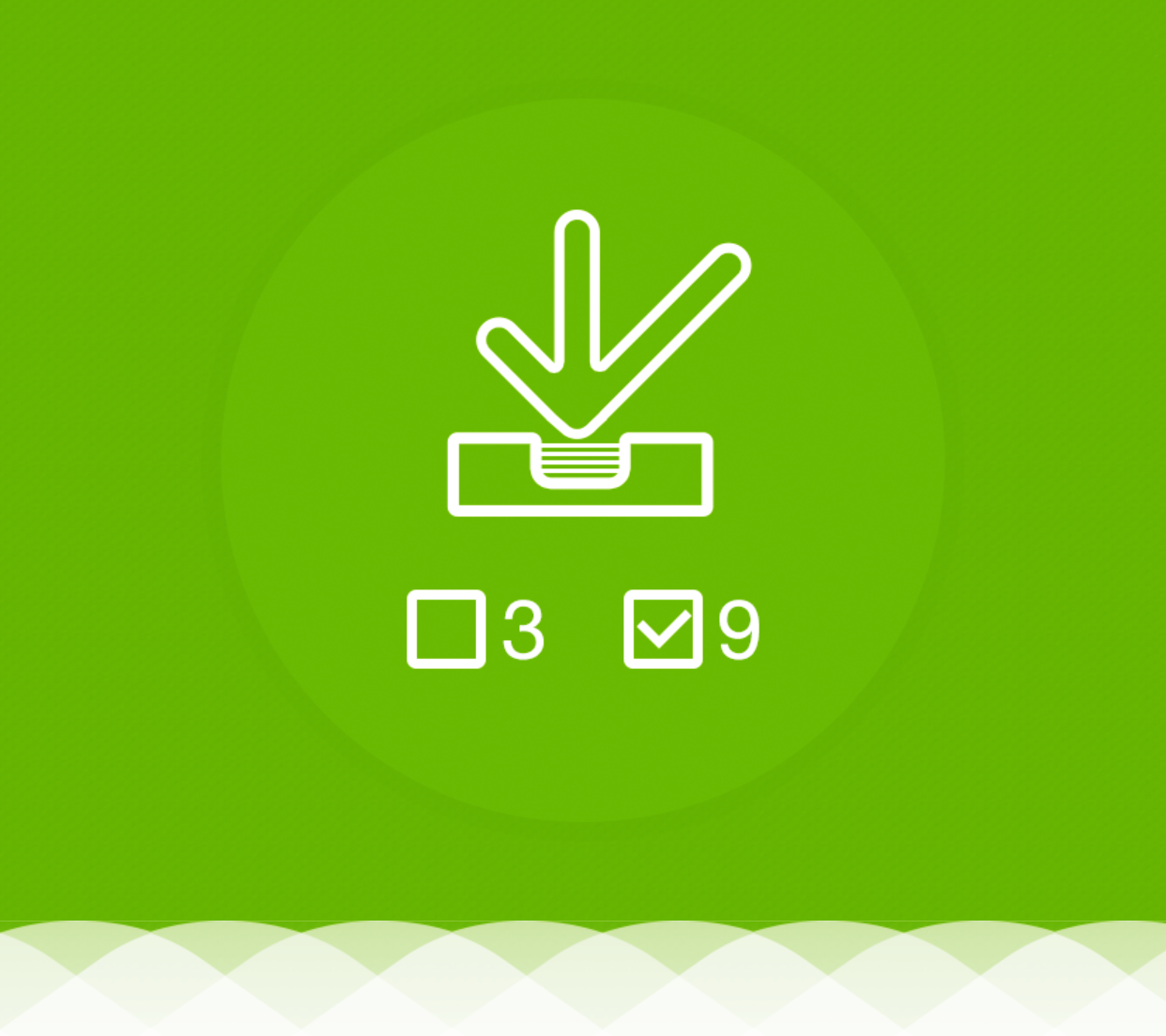
Now we consider the function of counters and their configuration in the view of tasks. This innovation allows you to glance quickly over the list of views and understand how many different tasks require your attention. You don’t even need to open each view.


For example, you can see how many tasks in your Inbox waiting for your processing, even not revealing this view. Or you can see that there is an overdue task appeared in the Active Actions view even without opening it.


As you know, MyLifeOrganized app offers maximum flexibility. Therefore, the most important new feature is the ability to decide what type and what kind of tasks are important to you in the current view: All, completed, not completed, started or overdue.
We took care that you can customize the counter system as it’s convenient for you.


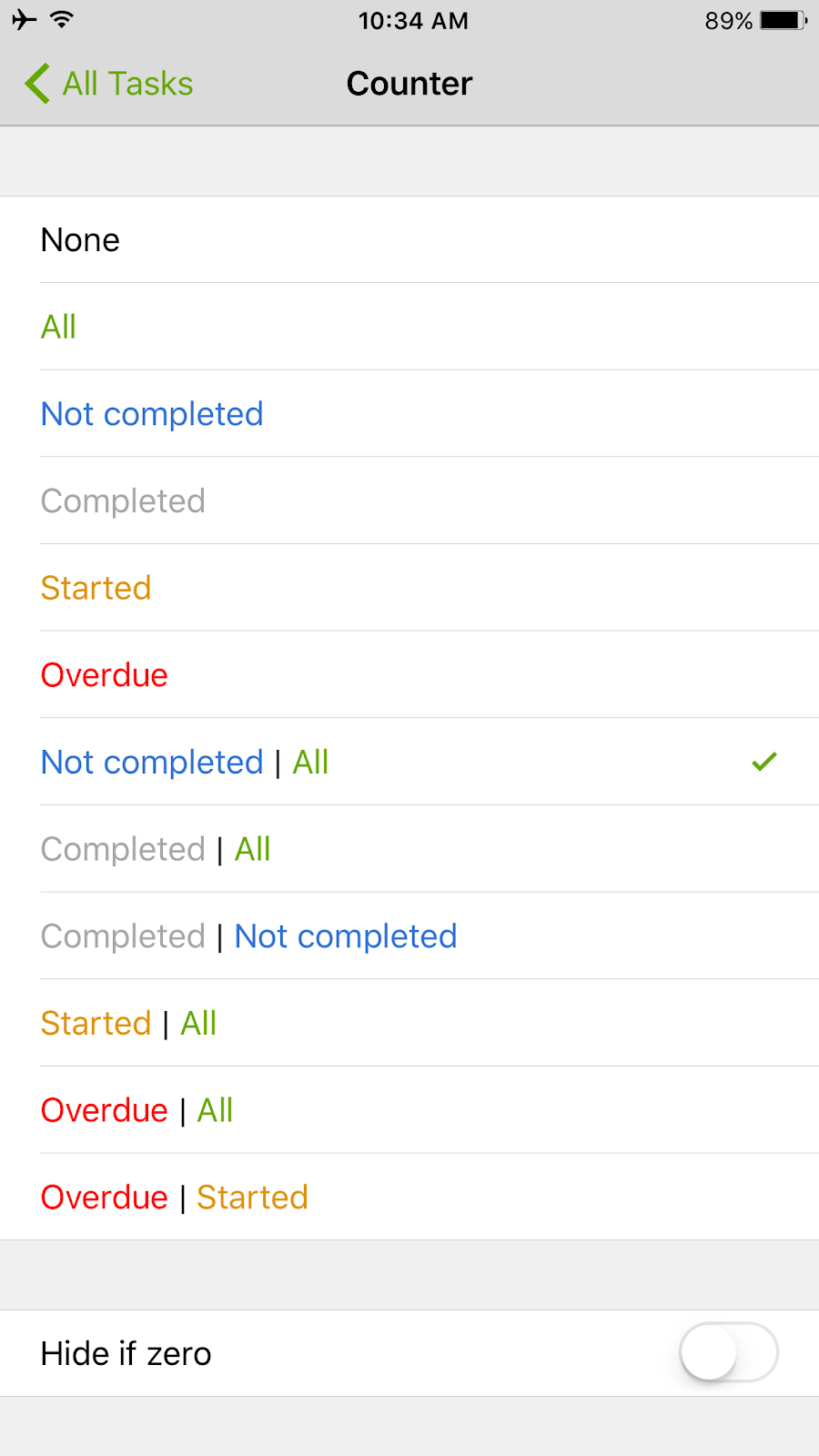
First you go to the settings of view counters.
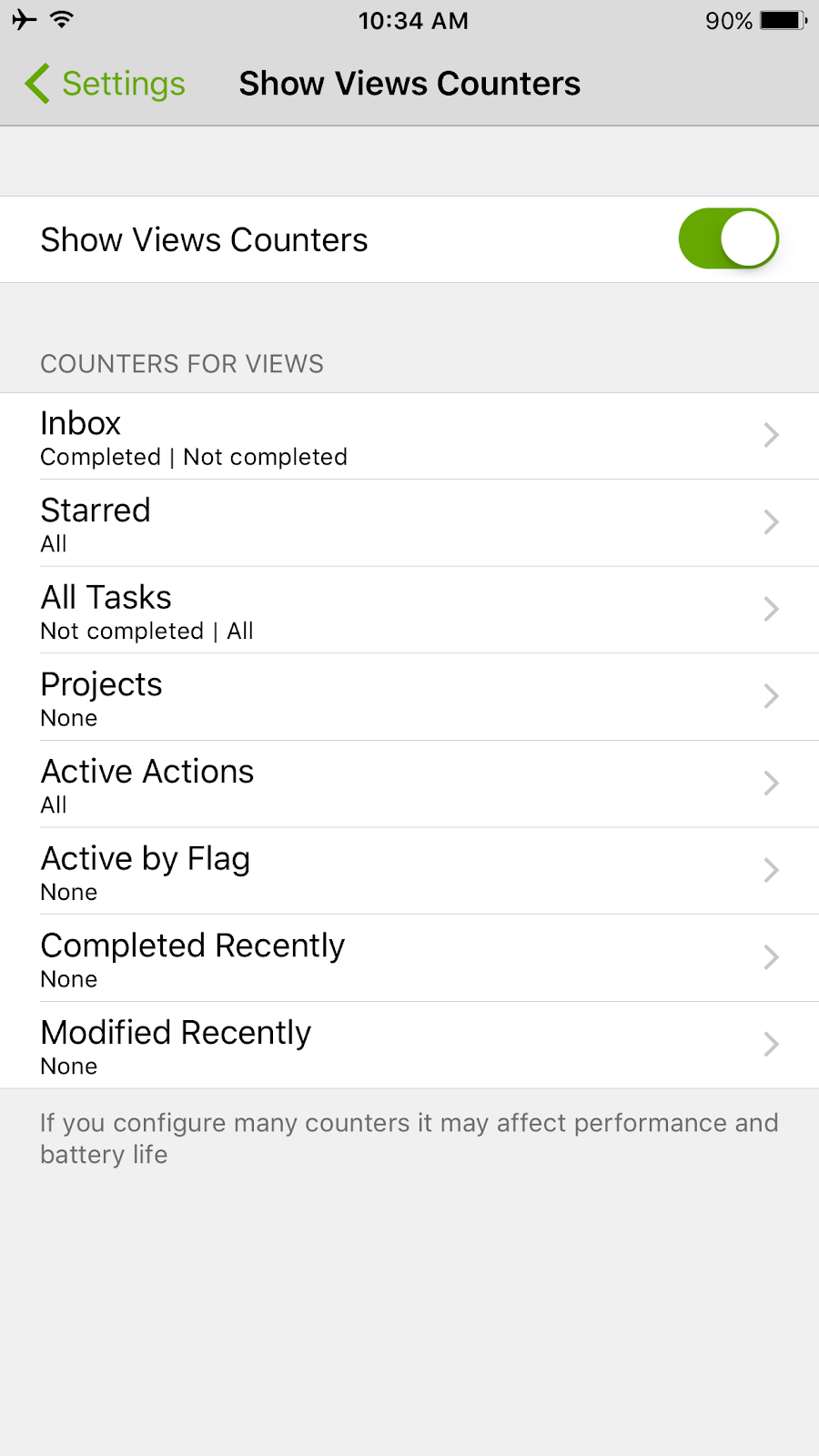

IMG_2110.PNG


Go to the counters of the "All Tasks" view and select desired setting. For example, for this view we want to see two counters: the number of not completed tasks and the number of all tasks.

IMG_2111.PNG


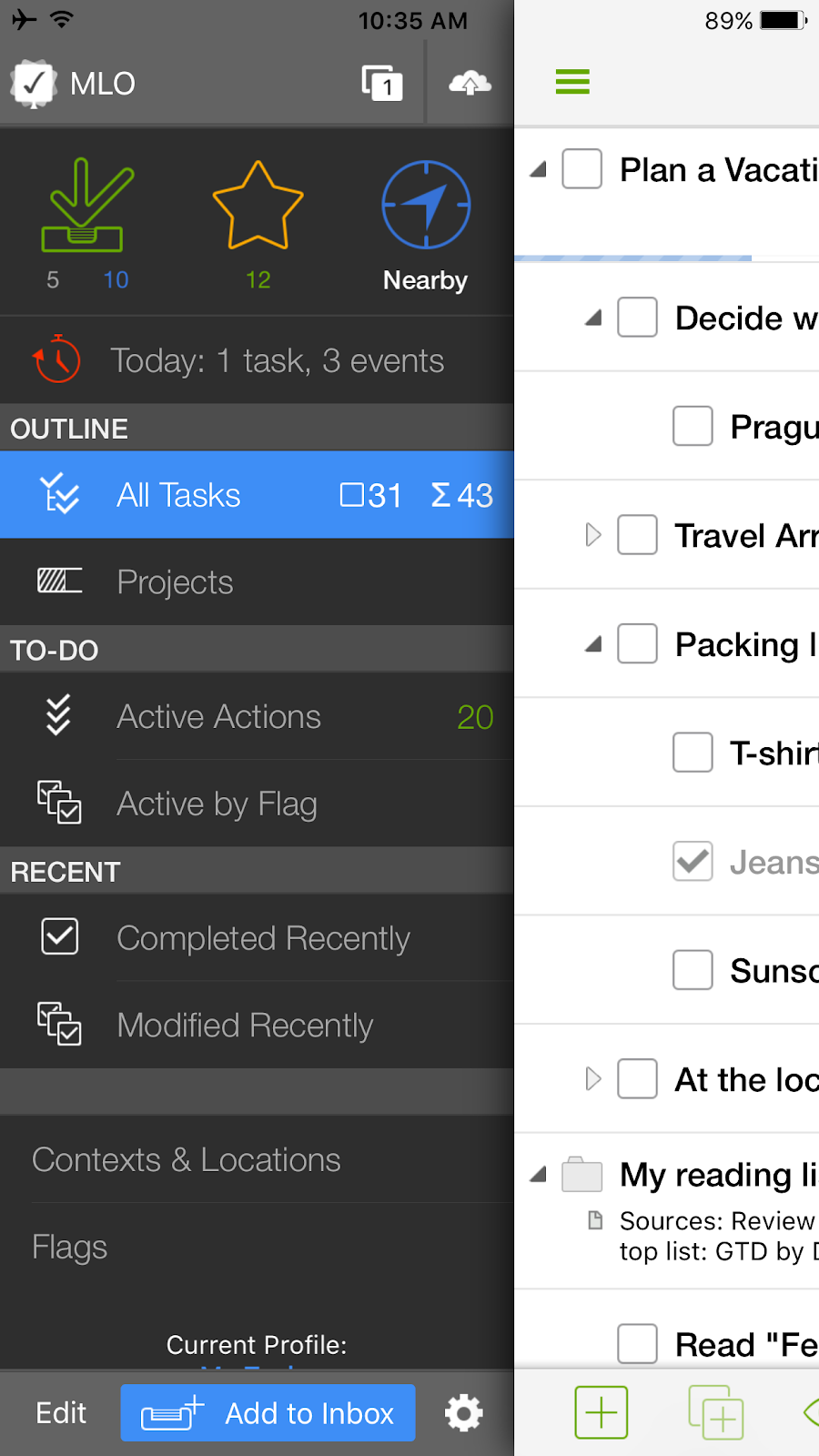
We can see that we have 31 of not completed tasks and 43 of all tasks in this view at the moment.

IMG_2112.PNG


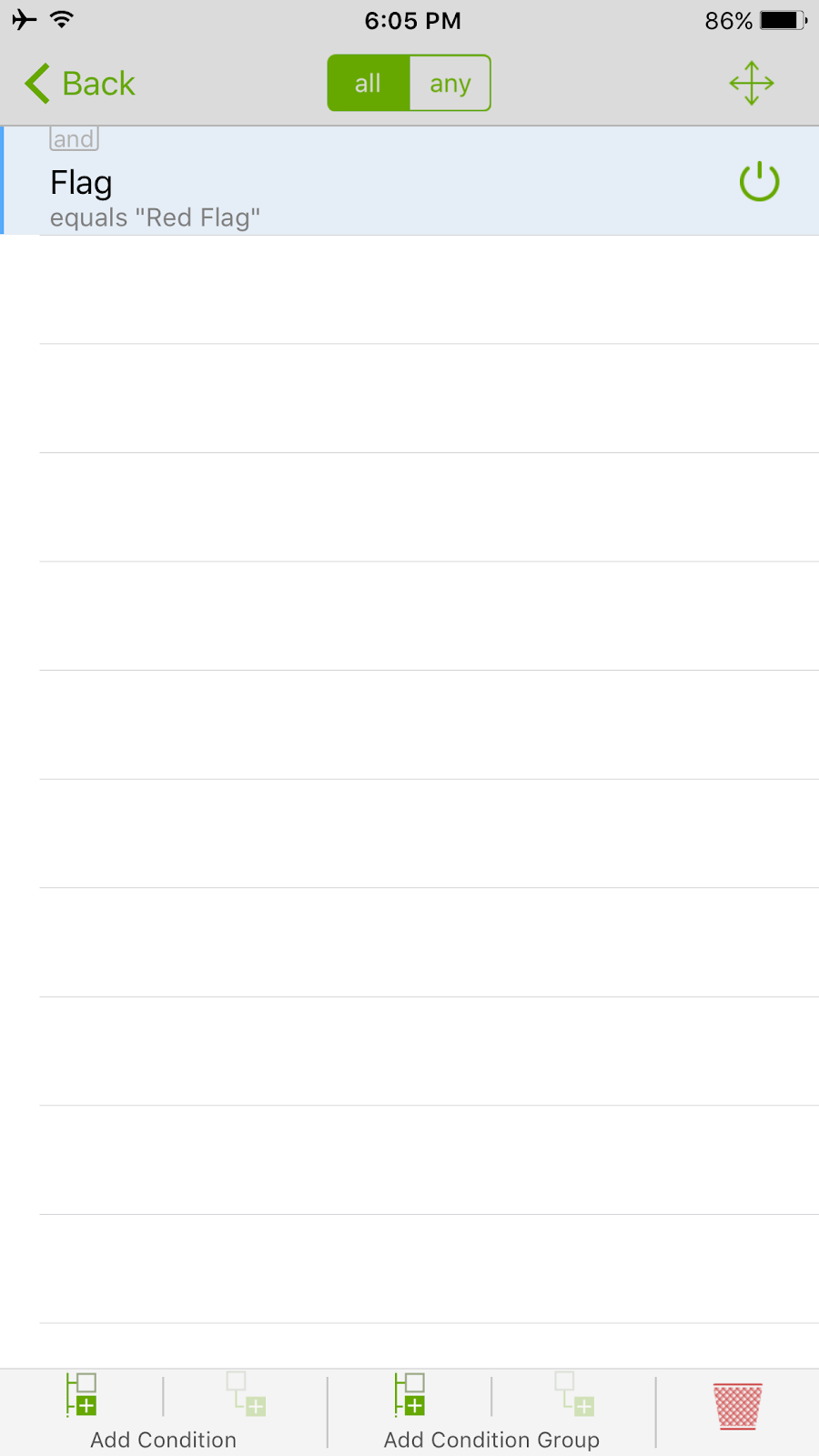
Important to note that counters consider tasks exactly in the given view. For example, we can count the number of overdue tasks among the tasks marked with red flag. To do this, we create a view showing only red flag tasks. Next we set for this view a counter of overdue tasks.
Thus, we give instructions for counter from which tasks it can make a count.

IMG_2193-setup-view-red-flags (1).PNG


Another interesting detail. If you set the option "Hide If Zero", the counter will not appear until at least one task with the given criterion appears. Thus, this option can be viewed as an additional soft notification, along with reminders for time, place and review already available in MLO.


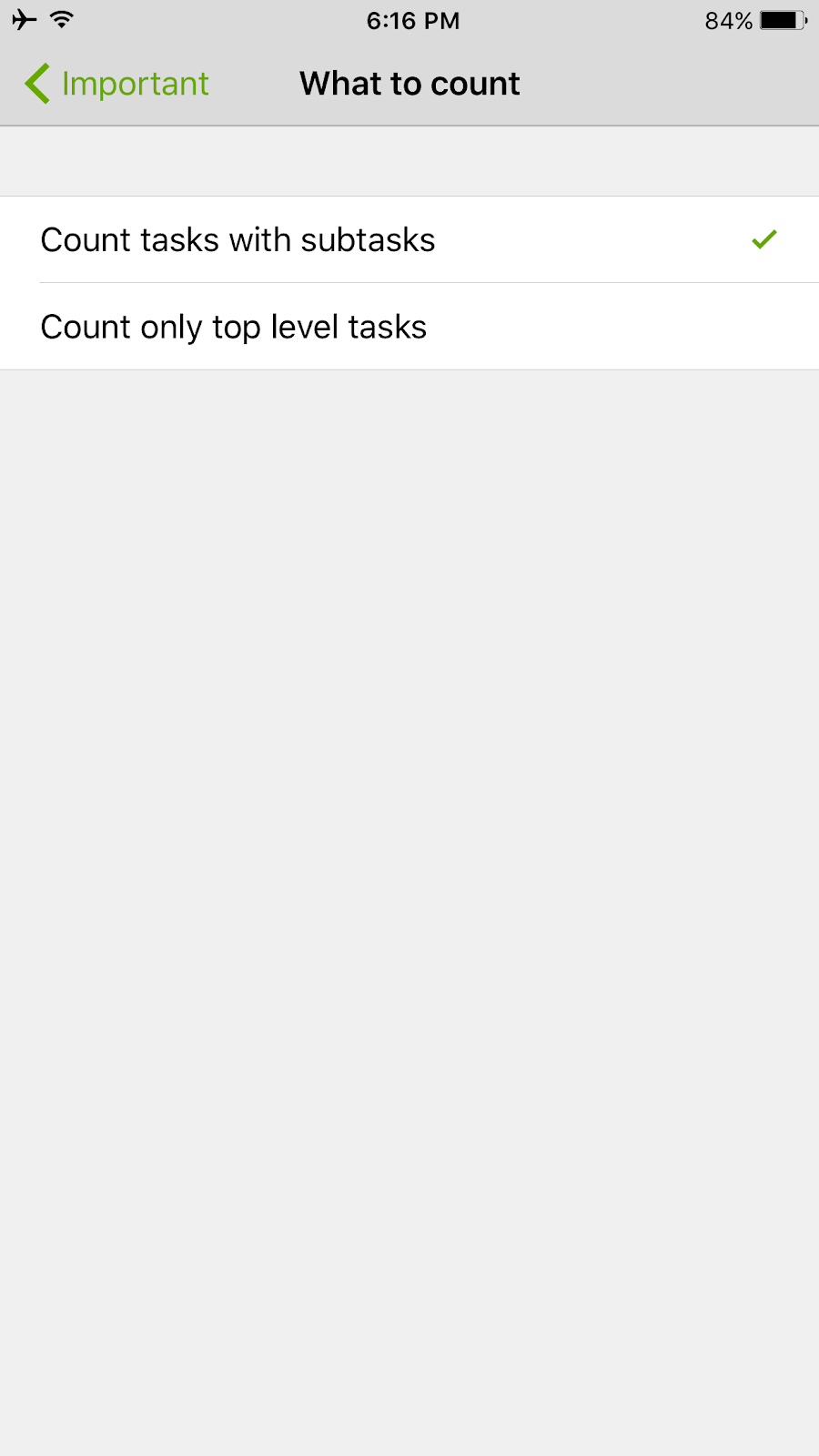
As you know, one of the main MyLifeOrganized advantages - is unlimited hierarchy. As well it is used in the counters. When they are set, you can specify whether to consider only top level tasks or tasks with subtasks.

IMG_2196-Include-subtasks (1).PNG


Stay with us
As you can see, the work of MLO has become even more efficient and comfortable, despite the large number of your various tasks.


Next we will announce in detail the new feature for MLO iOS 3 pack - parse in your inbox, which can select by the entered text a date, context, time and other task settings.


Thank you. Ask questions and write requests!


Best wishes,
The MyLifeOrganized team

Life is easy when organized

Friends, we have great news for you! Our team took into account your wishes and prepared a large upgrade for the iOS app. Functionality of...

Friends, we have great news for you! Our team took into account your wishes and prepared a large upgrade for the iOS app.

Functionality of the desktop version on your iOS device

We continue to improve MyLifeOrganized app, and recently we released an updated version of MLO for Android. Also we made iOS version even better! Our team have worked on the new MLO 3 feature pack during many months, and by this blog posts we are pleased to present what we have.
We hope you will like it as we do.

At the moment, the new version is being tested. The testing is performed by hundreds of lucky MyLifeOrganized users.

In the meantime, we'll tell you about the improvements in the MLO 3 feature pack for iOS:
  • Full using of flags on your device
  • Custom counters
  • Archive for completed tasks
  • iPhone + iPad = a single universal app
  • Application for Apple Watch
  • Task statistics
  • Parse in your inbox

Previously, many of these features were available only on the desktop version. Now the feature pack of improvements for iOS brings the mobile app functionality closer to the desktop.

The new package will also include other useful features. We will tell about it after the final testing. 
In this post we will particularly describe one of the new features.

Full using of flags on your device

MyLifeOrganized desktop members have the opportunity to enjoy bright flags for a long time.
Now with the new MLO 3 Pro pack you can enable using of flags in your personal management system and on your iOS device. Assign flags to tasks, filter, sort and group with the help of bright and useful flags:


For example, you would like to highlight a red flag (urgent task) trip to Prague.
To assign a flag you need only one click. To select which flag to assign - long press.


You can organize and allocate flags as you wish. For example, red flag - urgent tasks, purple - creative tasks, blue - can be done later and so on.
Moreover, you can synchronize other flag icons from desktop MyLifeOrganized and create a personal comfortable system.

We would like to mention an important point.
You can define the order of the flags in the list. Therefore, this order is also taken into account when sorting by task flags. Thus, you can create a view in which all marked with flags tasks will automatically line up in that order.

Stay with us

We will talk in detail about new features for MLO iOS 3 feature pack. Next we will announce custom counters for your tasks.

As you can see, the work of MLO has become even more efficient and comfortable, despite the large number of your various tasks. Especially if you like all the bright and beautiful things, flags on iOS will fall exactly to your taste.

Ask questions, write requests. And stay with us!

Best wishes,
The MyLifeOrganized team
Life is easy when organized

Friends, we have great news for you! MyLifeOrganized for Android got the workspaces - which are similar to tabs in the desktop versio...

Android-phone копияzz.jpg


Friends, we have great news for you!

MyLifeOrganized for Android got the workspaces - which are similar to tabs in the desktop version.
Who knows what it means, for certain you are happy ;)
For the rest, we will explain this update in detail.


Previously, you had to make a lot of actions to focus on one task or project. For example, to switch between the different branches of tasks in a big task tree, it was necessary to have a long scrolling first to find needed task, then re-adjust the zoom, select the desired view and configure other filters. And repeat it again and again.


And now you have workspaces in MLO, which saves your time and helps to manage to-dos more efficiently. You set up once the desired configuration of the focus, view and filters. Next you save them as a wokrspace, and finally you can switch between them very quickly.

For example, in one workspace you focus on the branch Work with a View "Active Actions", filtered by the context @calls. And in another workspace you adjust the zoom at the House with a View "All Tasks" and context filter @computer. Now, fast switching between these areas restores the proper configuration, and you see only the tasks that are needed now.


Detailed steps


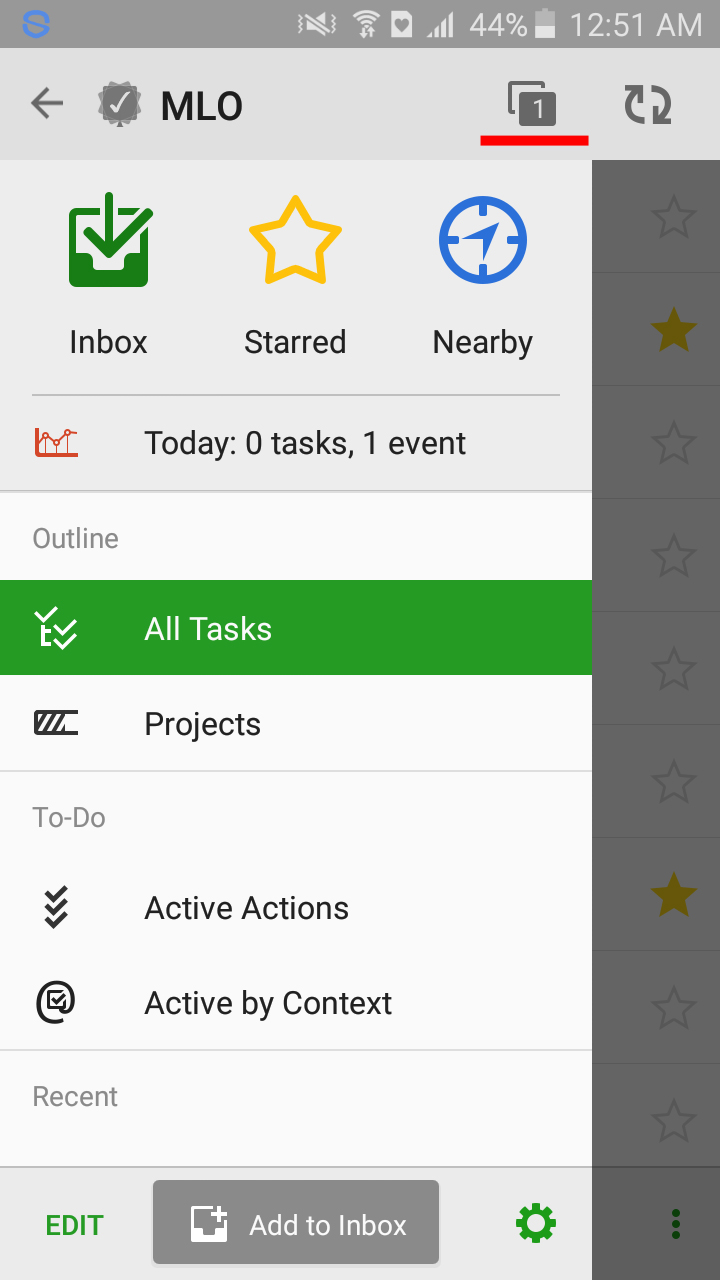
At first from the all tasks you open the left main menu.
Next you need to select the switch workspaces icon.


Screenshot_2016-04-05-00-51-06.jpg        


You are in workspaces now.
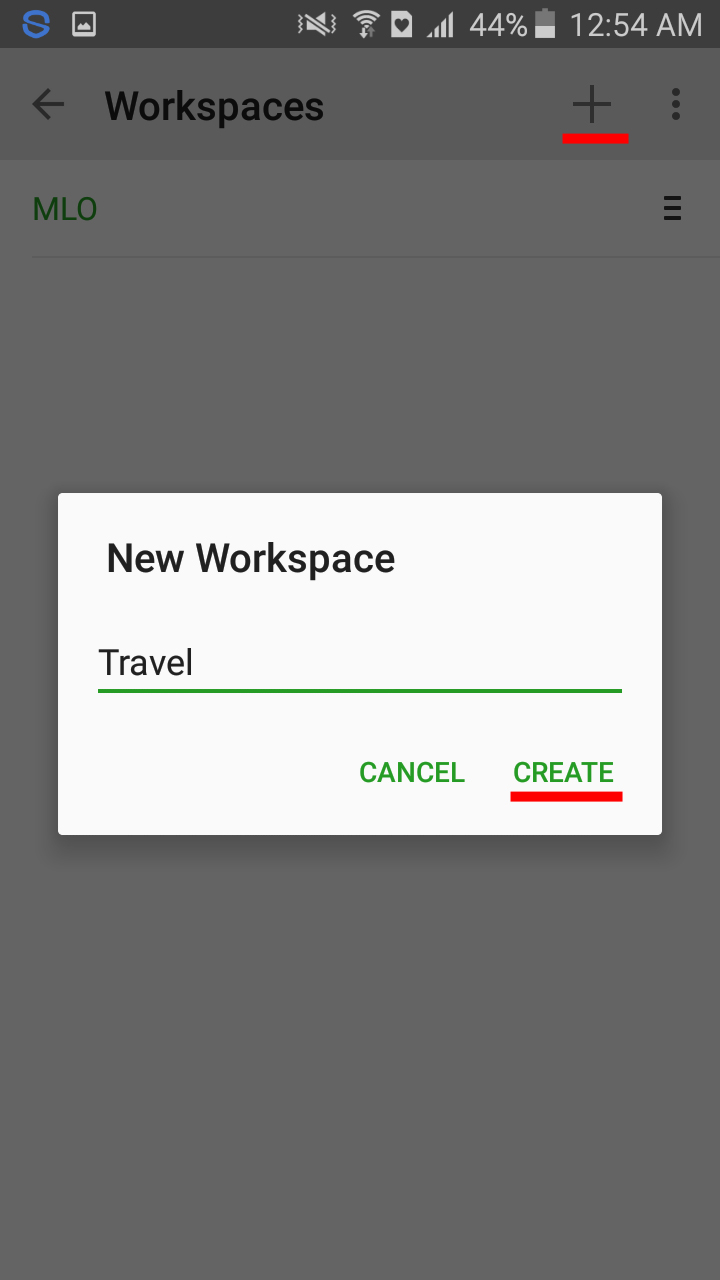
And you would like to concentrate on your future around the world trip.
Therefore, you can click + and create a new "Travel" workspace.


Screenshot_2016-04-05-00-54-25.jpg  


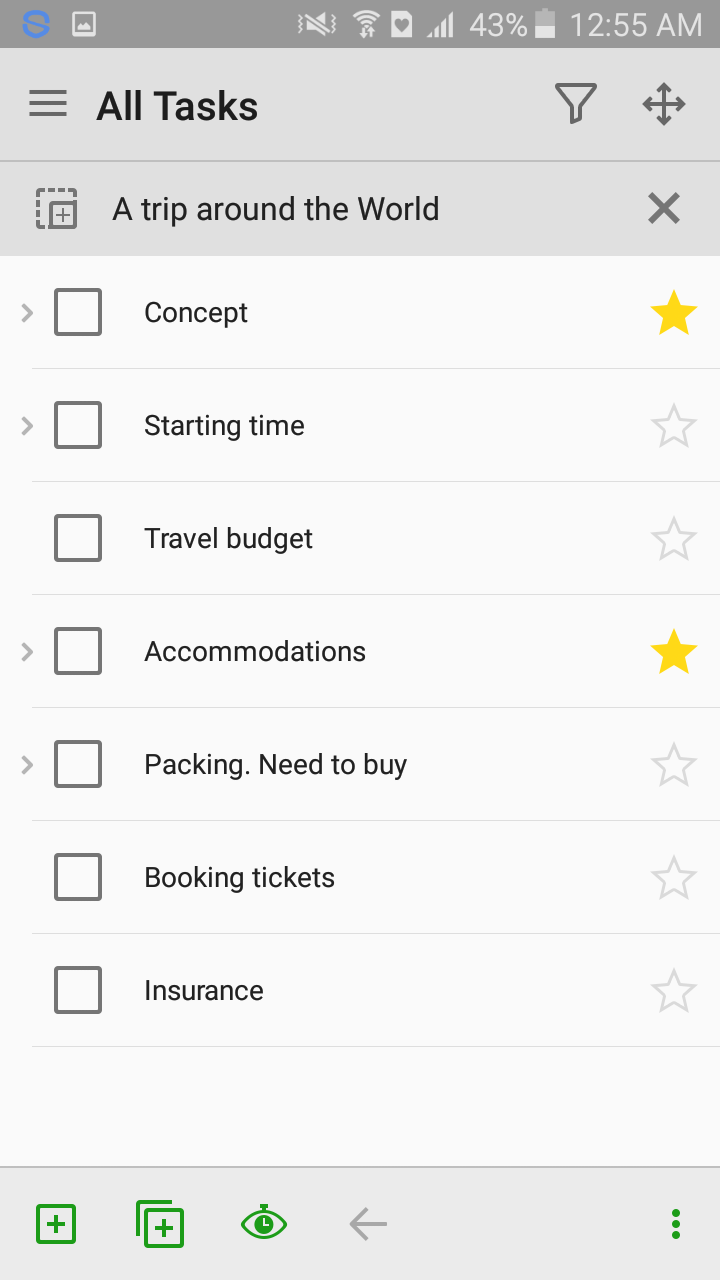
Next, in the "Travel" you set the zoom and other desired filters.


Screenshot_2016-04-05-00-55-34.png


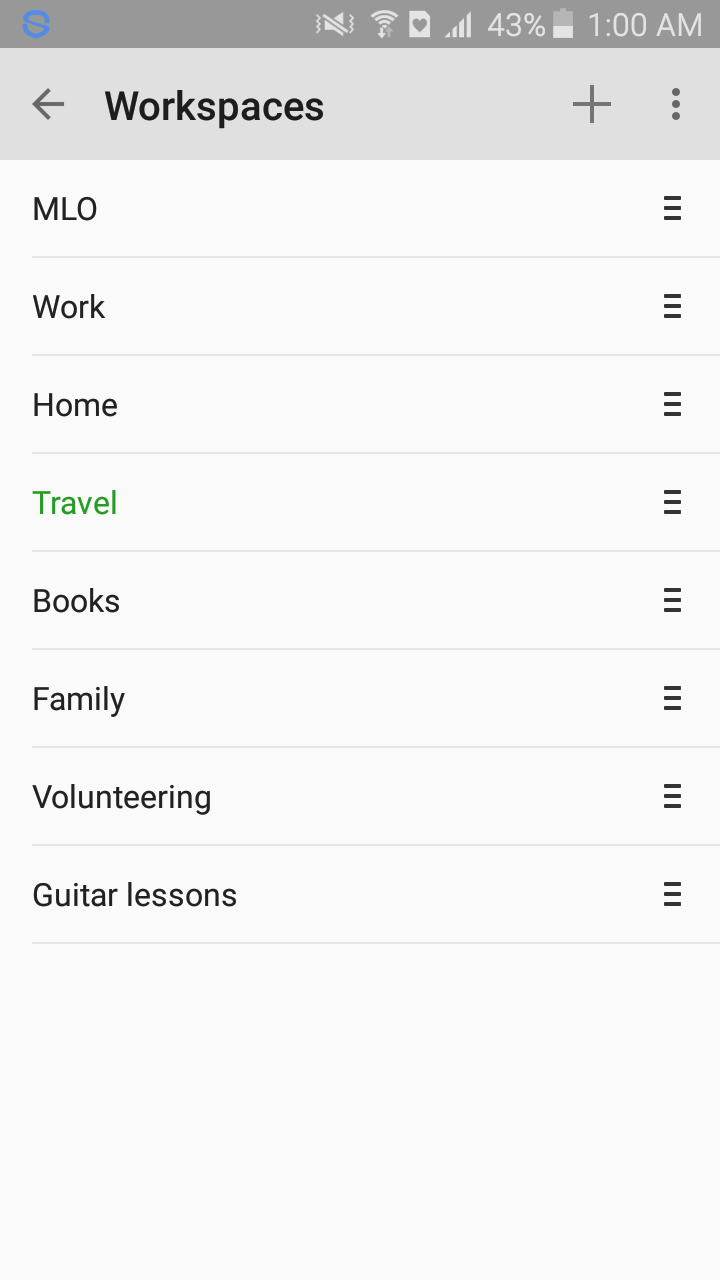
Now you can easily switch between the workspaces, adjust them for yourself and quickly focus on relevant tasks.


Moreover, you can create a lot of workspaces in MyLifeOrganized app.


Screenshot_2016-04-05-01-00-19 (1).png


Workspaces retain: Active view, the selected task, zoom, text filter, context filter, completed tasks visibility, as well as the search mode. A couple of clicks and you are ready to carry out the required tasks. Do you agree that it is quite convenient?)


The widget can be tied to the workspace
Before in Android app you could not customize the widget to show only one branch of tasks. If the application zoom was removed, it disappeared from the widget too. The same applies to the context filters and other settings.


Now you are connecting workspace with the widget, and the zoom is saved.


We can show you.
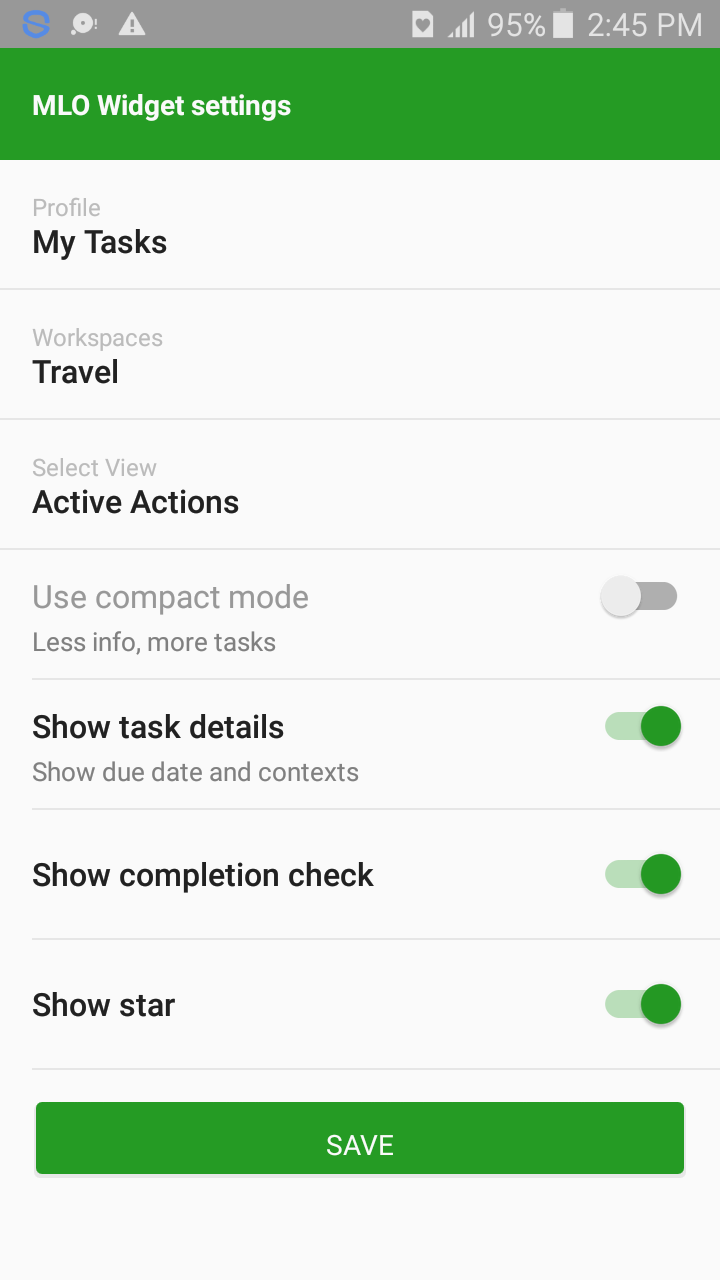
In the widget settings select the "Travel" workspace. Just enjoy these tasks regardless of which workspace the application shows itself.

Screenshot_2016-04-06-14-45-03.png     Screenshot_2016-04-05-00-56-23.png


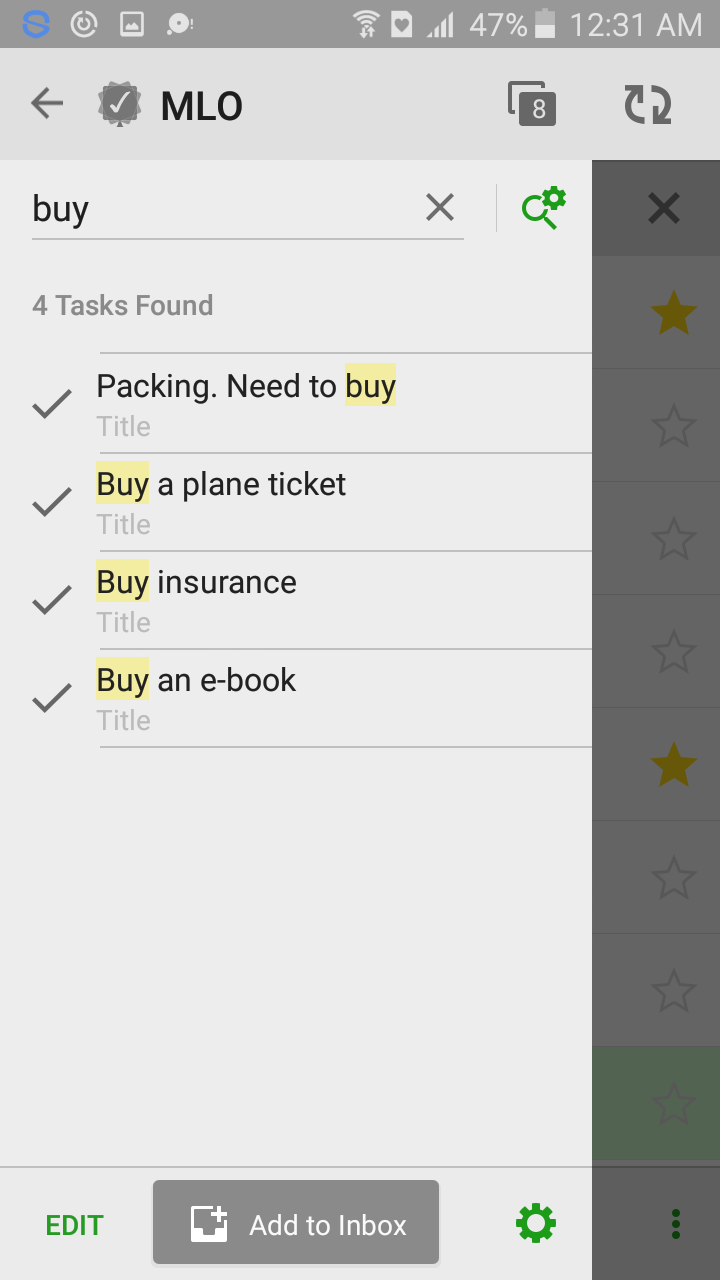
You can also create workspaces of the search results:

   Screenshot_2016-04-06-00-31-12.png


As a result you can create a variety of workspaces with different search queries and switch between them quickly.


We remind you that the workspaces for Android are similar to tabs in the desktop MyLifeOrganized application. Detailed description of the tabs you can read in the help for the desktop version or in our blog. Also workspaces has long been used in the iOS version of MLO.

As you can see, the work of MLO has become even more efficient and comfortable, despite the large number of your various tasks.
Ask questions and write requests. And thanks that you are with us!


Best wishes,
The MyLifeOrganized team
Life is easy when organized

We continue to improve MyLifeOrganized Android app, so you can still cope better with everyday activities for getting your to-dos final...


We continue to improve MyLifeOrganized Android app, so you can still cope better with everyday activities for getting your to-dos finally done.


We are constantly trying to make MLO even more convenient. Therefore, our team took into account some of your previous wishes.
As you know, we updated MLO app for Android some time ago. Now we would like to tell you more about new improvements.

Innovations in the version MLO 2.2:


  • added task statistics for the past in Today view. Choose from completed, created, modified or overdue tasks
  • added quick properties icons on top in the edit mode in the Outline to speed up entering the most frequent task properties
  • less clicks if set due date for a new task
  • current profile zoom will be considered in widget now
  • application start time has been improved
  • fixed an issue when a recurrent task with end date does not stop recurring
  • bug fixes and stability improvements


This post will help you to understand deeper some new features:

1. Now you can see task statistics for the past in Today view. Choose from completed, created, modified or overdue tasks


In the earlier version of MLO you saw only the distribution of tasks for today and for the future. After the upgrade, you will see a complete picture of your actions in the past. You can see how productive you were yesterday or last week.
In MyLifeOrganized you can also focus not only on the result of the problem, but also on the process.


To see how many completed tasks do you have, go to the Today view and pull the graph to the past:


Now we can see how many tasks and events we have done in the past for each day in graph form.


Advice: in the settings of the view Today, you can disable counting of the events on the graph. So it will count only your tasks:


But that is not all. What if we would like to know how many tasks we have added to MyLifeOrganized on a specific date? It is also possible. To do this, switch the filter for the past to 'By Created Date' mode:


In the same way it is possible to see the number of overdue tasks:


All this will help you to understand the full picture of your actions and would give you a reason to set new efficiency goals.

2. MLO keeps your time, therefore we added quick properties icons on top in the edit mode in the Outline:


When you enter a new task, there are basic properties of tasks icons at the top of the screen. You can use them for quickly entering the notes, contexts, due dates or reminders. To enter the other properties of a new task, click the ellipsis.

3. The new version of MLO has less clicks if set due date for a new task


You can spend more time thinking about your life goals, rather than doing unnecessary actions in the app.
In new version when you click the date icon it directly opens the calendar to set the due date or start date (depending on the settings in MLO):


Two of recent innovations greatly reduce the number of unnecessary movements at the most frequent operations in MLO app.
We are constantly trying to find ways how to make MLO even more convenient. So if you see more options how to do this, please let us know in the comments.

Finally, the last improvement we wanted to mention:

4. Current profile zoom will be considered in widget now


For example, you come home so you want to see only tasks for the house. Without work, gym and other things. We put in the application zoom for home, and widget MLO also does it. Now you and your Android fully dedicated to wash dishes ;)


As you can see, the work of MLO has become even more efficient and comfortable.
Ask questions and write requests. And thanks that you are with us!


Best wishes,The MyLifeOrganized team
Life is easy when organized

We have to perform some essential maintenance to MyLifeOrganized Cloud service. To minimize the impact of this maintenance, we have ...

We have to perform some essential maintenance to MyLifeOrganized Cloud service.

To minimize the impact of this maintenance, we have scheduled this downtime in the following maintenance window:

* 20:00 Sat 06 Feb – 21:00 Sat 06 Feb, San Francisco time
* 23:00 Sat 06 Feb – 00:00 Sun 07 Feb, New York time
* 05:00 Sun 07 Feb – 06:00 Sun 07 Feb, Amsterdam time
* 15:00 Sun 07 Feb – 16:00 Sun 07 Feb, Sydney time

All time zones.

The estimated duration of the maintenance will be 1 hour.

You may experience difficulties while connecting to MyLifeOrganized Cloud during this time.


UPDATE: We had to reschedule the maintenance window 30 min later to: 4:30-5:30 UTC
UPDATE: The maintenance has been completed successfully.