Great news for MyLifeOrganized iOS Task Manager users – MLO now supports 3D Touch and Widget!
What is the point of this update? If you’re an avid Apple user, then you are really going to love MLO's latest update based on 3D touch technology (available on iPhone 6S and later). With our new set of features you can now enjoy a few additional extras that are bound to enhance your MLO experience. Now you can use the most helpful MLO commands from 3D Touch menu and from Widget. These commands not only represent the most frequent and useful actions, but also provide for flexible user customization.
Note: You would need to run the Pro version to use the new 3D Touch and Widget feature.
You may access 3D Touch features by force pressing the MLO app icon. Here is how it looks:
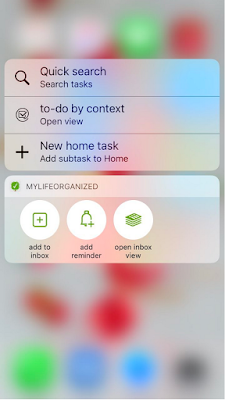
Let us consider 3D Touch first. In order to configure 3D Touch, please open MLO->Settings->3D Touch.
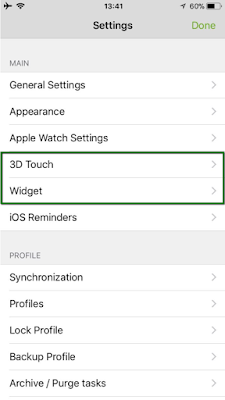
3D Touch settings
As you will see, there is a list of three default quick actions which you can also modify if necessary:
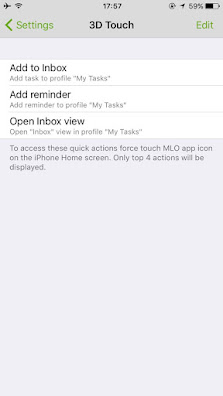
Please tap Edit and in Quick Action option select an action from the list of five available action types: “Add new task”, “Add reminder”, “Open view”, “Search task”, as well as “Open URL”. We will consider most of them in detail.
The first action type is called “Add new task”.
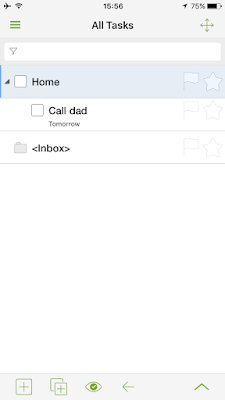
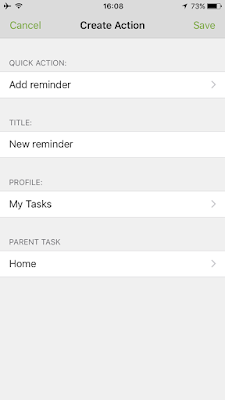
As you may guess, this action is intended for adding a task to Inbox or any branch of the selected profile. You may also configure its title to distinguish it from other actions, as well as choose the profile and the parent task it will be added to (if parent is not set the task will be added to Inbox). In our case it is “Home”:

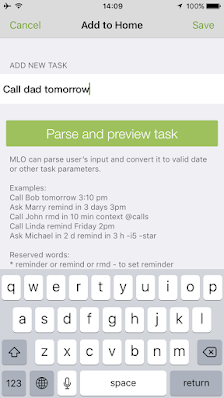
Here’s what you’ll get:
When a user selects the "Add reminder" action type, the new reminder quick entry dialog shows up. This action is used to quickly set a reminder for a new task and our new dialog is specially designed so that you can do it really fast.
This one is easy to use it as it has a familiar interface for setting a reminder — as usual, you are to choose date and time, and tap “Save”:
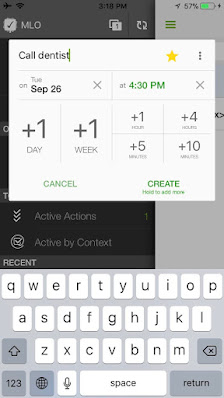
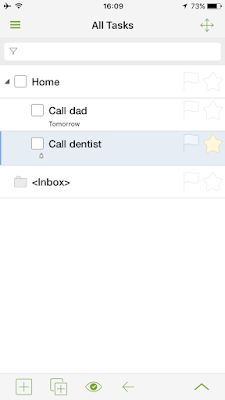
As the result, a new task added immediately gets a reminder that will show up in the preset date and time:
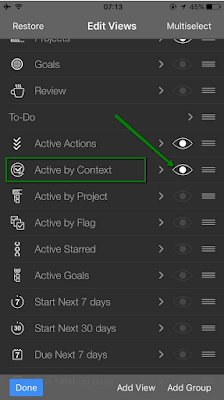
As for the “Open view” action, it opens the specified view in a particular profile (for example, “Active by Context” in your work profile). Besides, you may also choose workspace and zoom for a branch (which is optional). At last we name the action by setting its title:
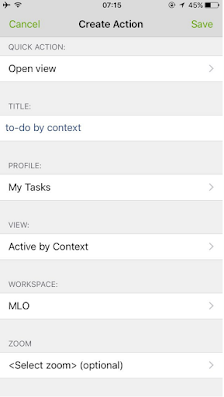
To have a view included to the list of views enable it in the “Edit Views” menu:
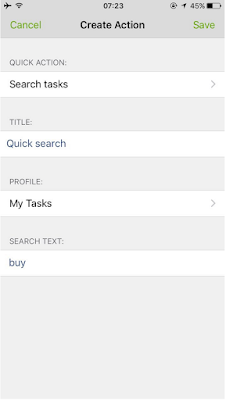
The next action type, “Search task”, opens a search dialog with an optional predefined search string. It has 3 settings, they are its title, the profile where a task is going to be searched, and the third being the optional field to set the search text to be entered when using this quick action.
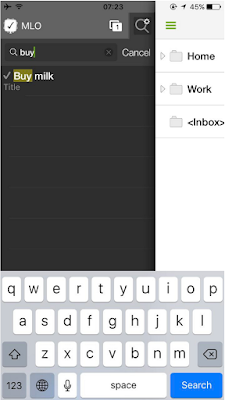
As you can see, MLO automatically uses the predefined search text (“buy”) when searching for a task:
There is one more action type which we decided to introduce for 3D Touch, it is called “Custom URL”. Many iOS applications have their own list of URL schemas that you can use to perform certain actions in these apps. For example, to run Chrome app and open a page in it you may execute this URL command: googlechrome://example.com . MLO is going to have its own URL Schema (the list of commands) which we will describe later on. Thus, this small action opens up a rich field of possibilities as you can enter any URL of any application (including MLO) to execute a specific command. Please refer to the syntax documentation of the necessary app for details.
As for Widget, it works and is configured much the same way, but is available not only through long tap, but also by swiping down from above (iOS 10) or swiping right (on iOS 11).
The icons of the widget represent this or that action:
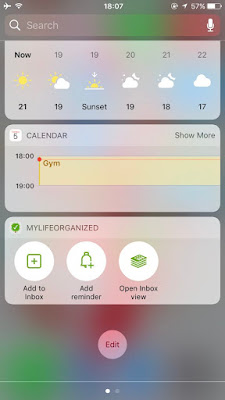
Note: Only top 4 actions will be displayed in 3D Touch and Widget. The actions may be removed later.
Do you enjoy this update? Please feel free to comment.
Best wishes,
The MyLifeOrganized team
Life is easy when organized